

Team & Settings
Invite Your Team
useHandoff is built for a whole firm, not just one login. Here's how to bring your team in.
Go to Team members
Find it under Settings → Team members. You'll see everyone currently on your team, their role, and how many of your five free seats are in use.
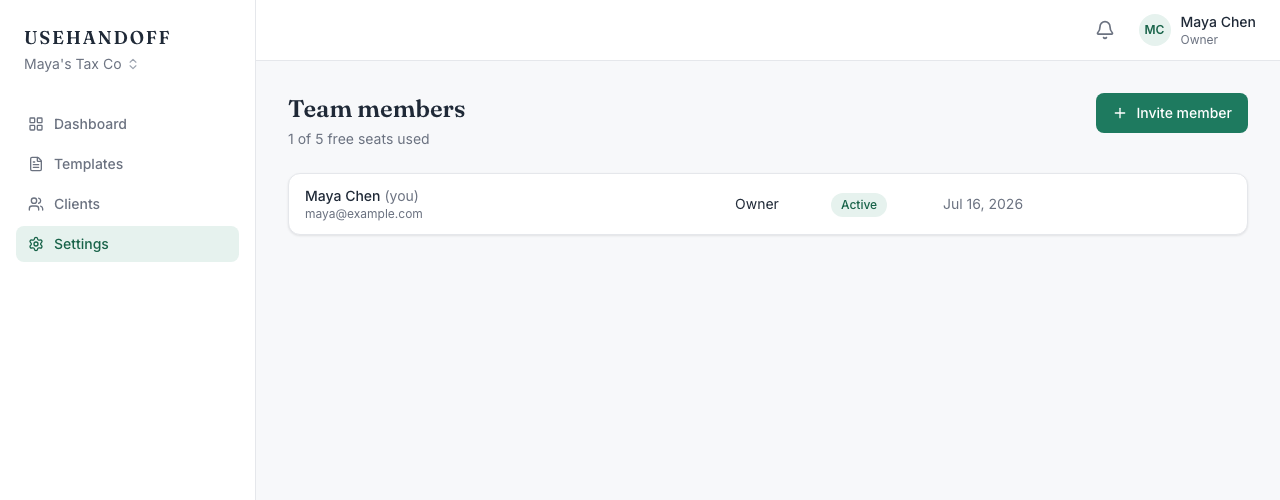
Click "Invite member"
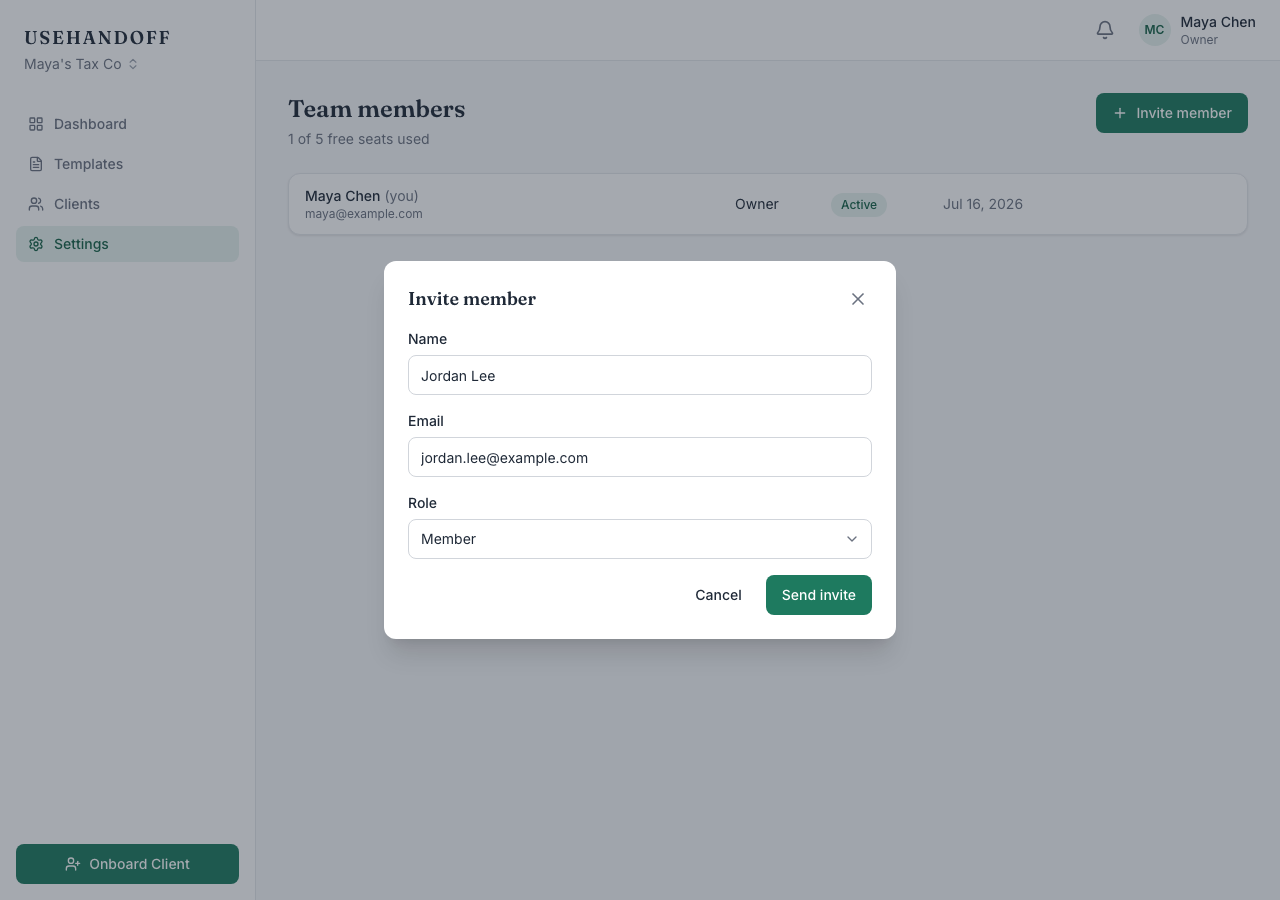
Enter their email and pick a role — Owner and Admin can manage members, templates, and settings; Member handles day-to-day client work. They'll get an email invite to set their own password; you never see or set it for them.
About the free seats
Your first five staff seats are free. Adding a sixth still works immediately — useHandoff just shows you a clear notice that it adds $1/month to your bill before you confirm, and a running total stays visible on the Team members page. Nothing is ever charged automatically.