

Reviewing Work
Review Submissions and Request Fixes
Once a client marks their checklist complete, their project moves to Under Review and waits for you — nothing progresses further until you say so.
Open the review workspace
Click into the project from your dashboard. Every requested item is listed on the left; select one to see exactly what your client submitted.
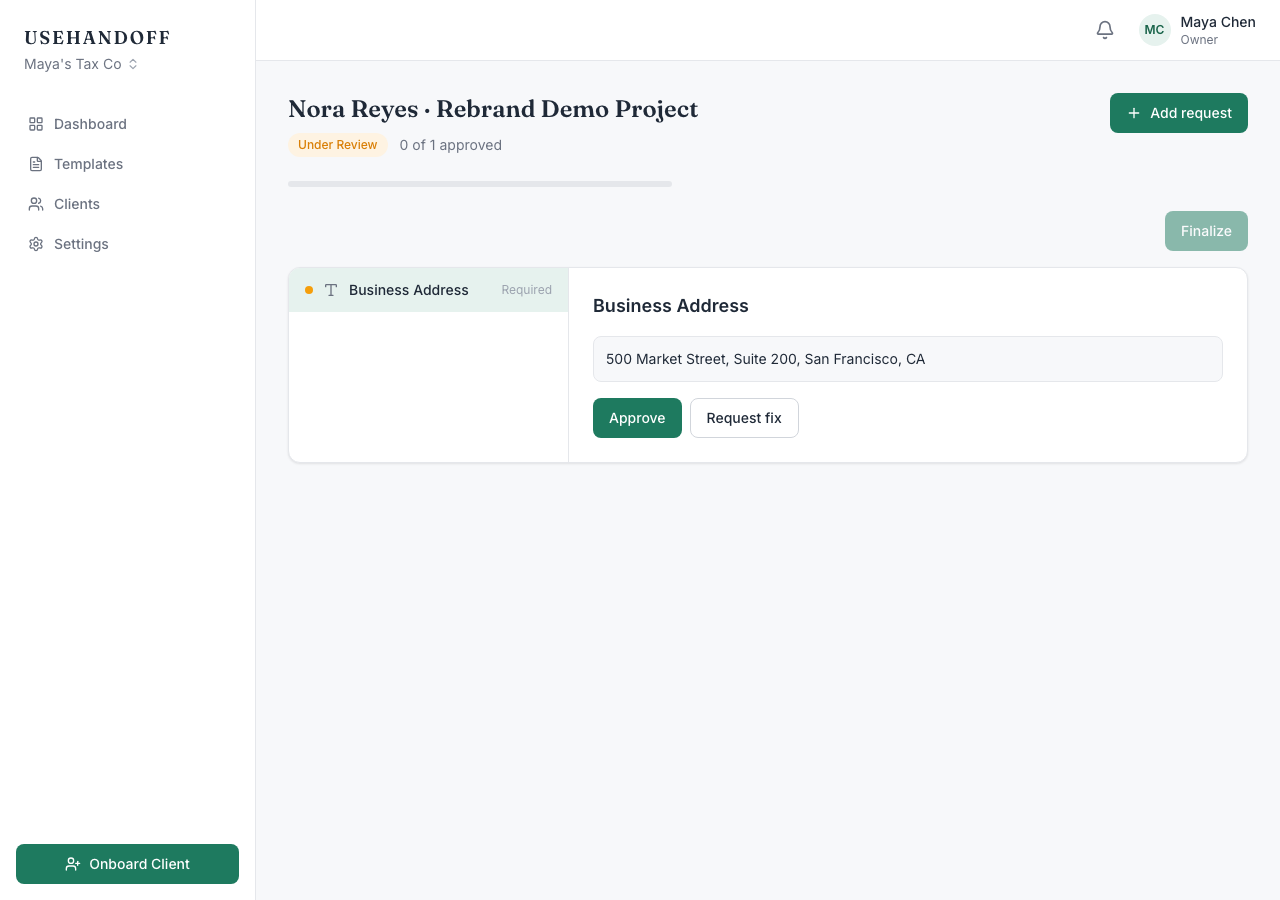
Approve it, or send it back
Two options for each item:
- Approve — locks the item and moves on to the next.
- Request fix — opens a short note field. Be specific ("Page 2 is cut off — please re-upload the full document") so your client knows exactly what to redo.
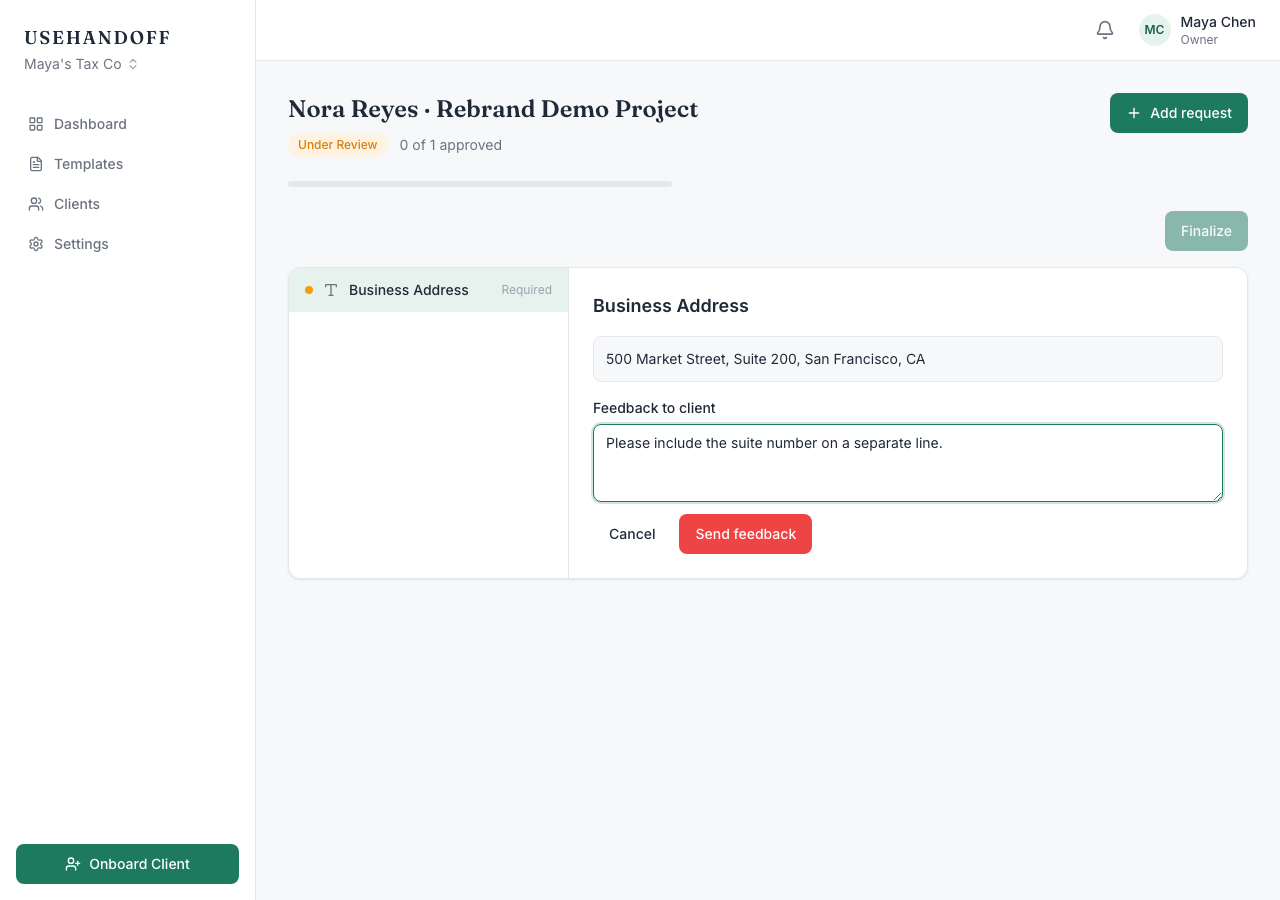
What your client sees next
Only the flagged item reopens on their end — everything you've already approved stays locked, so there's no re-checking work that was already fine. Once every item is approved, the project is ready for you to move to the next stage.